Turn pixel art into a cross stitch pattern
Pixel art is already a chart, so each pixel should become one stitch. Moonleaf spots pixel art (few exact colors, pixels in square blocks, even when the image is scaled up), sets the chart to one stitch per pixel and turns off the confetti cleanup. Our 16 × 16 test sprite, saved as a 128 × 128 PNG, came out as exactly 16 × 16 stitches with all 6 colors. Use PNG, not JPEG; a 16-pixel sprite is 1.1 inches wide on 14-count Aida.
Why is pixel art different from a photo?
A photo has thousands of colors that blend into each other, so a photo pattern maker has to average and simplify. Pixel art is already made of square cells in a few flat colors, which is exactly what a cross stitch chart is. The right result is one stitch per pixel, every color kept, and no “cleanup”. The usual photo settings work against that:
- Averaging pixels into squares blurs pixel art unless the chart is exactly as wide as the art, in its own pixels.
- Confetti removal deletes single-pixel details, like a highlight in an eye.
- Dithering scatters stitches where the art has flat color.
How does Moonleaf recognize pixel art?
When you choose an image, Moonleaf checks two things on your device:
- Few exact colors. At most as many as the craft allows (70 for cross stitch). A photo fails this straight away.
- Square blocks. It measures every run of identical pixels across the rows and down the columns and finds the largest block size that all of them fit. A sprite enlarged 8 times has every run a multiple of 8. That’s how a 128 × 128 image is recognized as a 16 × 16 sprite.
If both hold, it sets the width to the sprite’s own pixel width, the colors to the number of colors in the art, turns off confetti removal and dithering, and tells you so under the button.
What did our test sprite come out as?
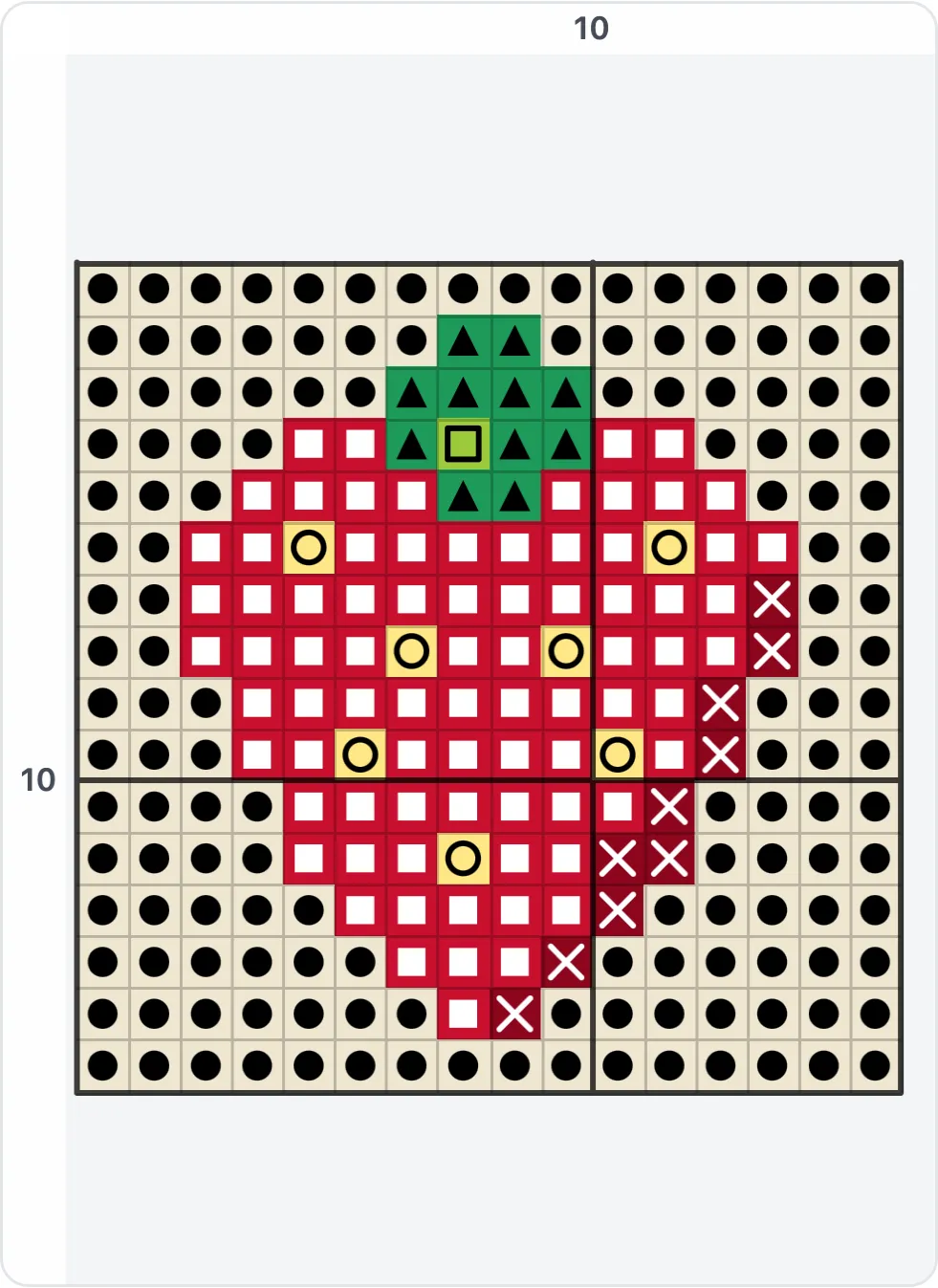
We drew our own 16 × 16 strawberry in 6 colors, saved it enlarged 8 times as a 128 × 128 PNG, and charted it with Moonleaf in Safari’s engine (Playwright WebKit 27.2):
- Detected: “16 × 16 pixels (shown 8× larger), 6 colors, charted 1 pixel = 1 stitch.”
- Chart: 16 × 16 = 256 stitches: 148 background, 79 red, 11 green, 10 dark red, 7 yellow seeds and 1 light green leaf highlight. The 1-stitch highlight survived because confetti removal was off.
- Floss colors: each of the 6 colors got its own floss shade (ecru, red, emerald, very dark red, light yellow, lime). None merged.
- Exact colors: with “Colors from: the photo’s own colors”, all 6 hex values matched the sprite exactly.
- Size: 1.1 × 1.1 inches on 14-count Aida, or 0.9 inch on 18-count. Small, which is normal for sprites; see below for stitching it bigger.
Why should I use PNG and not JPEG?
Because JPEG compression blurs the edges between pixels into new shades. We saved the same 128 × 128 sprite as a JPEG (quality 80) and charted it. Moonleaf didn’t detect it as pixel art: the compression had added far too many colors. Charted like a photo at the default 80 stitches wide, it gave an 80 × 80 chart with 10 colors instead of 6, four of them pale tans, beiges and greens that aren’t in the art at all, along the edges of the shapes.
So export your pixel art as PNG (or GIF), and if you download someone’s art, take the PNG version. Transparent pixels in a PNG are left unstitched in cross stitch, so the fabric shows around the sprite.
How big will it be, and can I stitch it bigger?
Size is pixels ÷ fabric count:
| Art size | 11-count | 14-count | 18-count |
|---|---|---|---|
| 16 × 16 | 1.5 in | 1.1 in | 0.9 in |
| 32 × 32 | 2.9 in | 2.3 in | 1.8 in |
| 64 × 64 | 5.8 in | 4.6 in | 3.6 in |
To stitch it bigger, either use a lower count such as 11-count Aida, or stitch each pixel as a 2 × 2 block: set the width to twice the art’s width (32 for a 16-pixel sprite). Moonleaf averages each stitch from the pixels it covers, and at an exact multiple every stitch falls inside one pixel, so the colors stay exact. The Aida fabric size calculator gives the fabric to cut for any size.
Floss colors or the art’s exact colors?
- Floss colors (the default) name each color with the nearest of Moonleaf’s 209 floss shades and work out the skeins. Pixel art palettes are usually bold and distinct, so each color tends to get its own shade, as in our test.
- The photo’s own colors keep the exact hex values. Choose this if you’ll match the colors by eye at the shop, or for a digital pattern.
- Your own thread list: paste number, name and hex for the floss you own, and the chart uses only those.
Does it work for bracelets and knitting too?
Yes, with each craft’s limits. Pixel art makes great alpha friendship bracelets, since alpha patterns are one knot per square (up to 10 colors and 40 knots wide). Knitting charts work too, but knit stitches are wider than tall, so a square sprite knits up a little short and wide unless you add rows. For anything else, the cross stitch pattern maker covers the rest of the tool.
Please chart pixel art you made yourself or have permission to use. Characters from games and shows belong to their owners.
Try it
Choose your pixel art below (PNG). It’s charted one pixel per stitch, with the color key, skeins and the PDF.
Make a cross stitch chart from a photo
Runs in your browser. Nothing is uploaded. No sign-up.
No photo handy?
80 stitches wide · choose a photo to see the height
More options
Pinch or scroll to zoom, drag to move. Tap a color in the key to highlight it.
Moonleaf Pro is coming soon · $4.99 per chart or $14.99 lifetime
- The printable PDF: cover, color key with amounts, chart pages with a page map
- Written row-by-row instructions for C2C and row crafts
- Charts up to 400 stitches wide and 70 colors
Everything above is free while we launch. Leave your email and we'll write once, when Pro is ready.
Questions people ask
How do I turn pixel art into a cross stitch pattern?
Choose the image (a PNG) in the tool on this page. Moonleaf recognizes pixel art, charts one stitch per pixel, keeps up to every color, and gives you the color key, skeins and a PDF. For the sprite's exact colors, set "Colors from" to the photo's own colors.
What size will my pixel art cross stitch be?
Pixels ÷ fabric count. A 16 × 16 sprite is 1.1 inches square on 14-count Aida and 1.5 inches on 11-count; a 64-pixel-wide piece is 4.6 inches on 14-count. To stitch it bigger, chart each pixel as a 2 × 2 block of stitches.
Why does my pixel art chart have extra colors?
Usually because the image was saved as a JPEG. JPEG compression smudges the edges between pixels into new in-between shades. Our sprite as a JPEG gave 10 colors instead of 6. Export or download the art as PNG or GIF.
Can I keep the exact colors of my pixel art?
Yes. Set "Colors from" to the photo's own colors and the chart keeps each pixel color exactly, as hex codes. In our test all 6 hex values matched the sprite. With the floss palette, each color gets the nearest named floss shade instead.
Are transparent pixels stitched?
Not in cross stitch: transparent pixels in a PNG are left unstitched, so the fabric shows through, which suits sprites. In crochet and knitting charts every square needs a color, so they become the background color.
Related
- Cross stitch from a photoTurn any photo into a cross stitch pattern with symbols, a color key, skein counts and a printable PDF. Runs in your browser; nothing is uploaded.
- Alpha bracelet patternsTurn a picture into an alpha friendship bracelet pattern with one square per knot, rows written out with knot direction, and the base strings to cut.
- Knitting chart from a pictureTurn a picture into a colorwork knitting chart sized to your gauge, with row-by-row counts, colors-per-row and float checks, yarn amounts and a PDF.
- All guidesEvery Moonleaf guide, by task.